The IC Control Panel
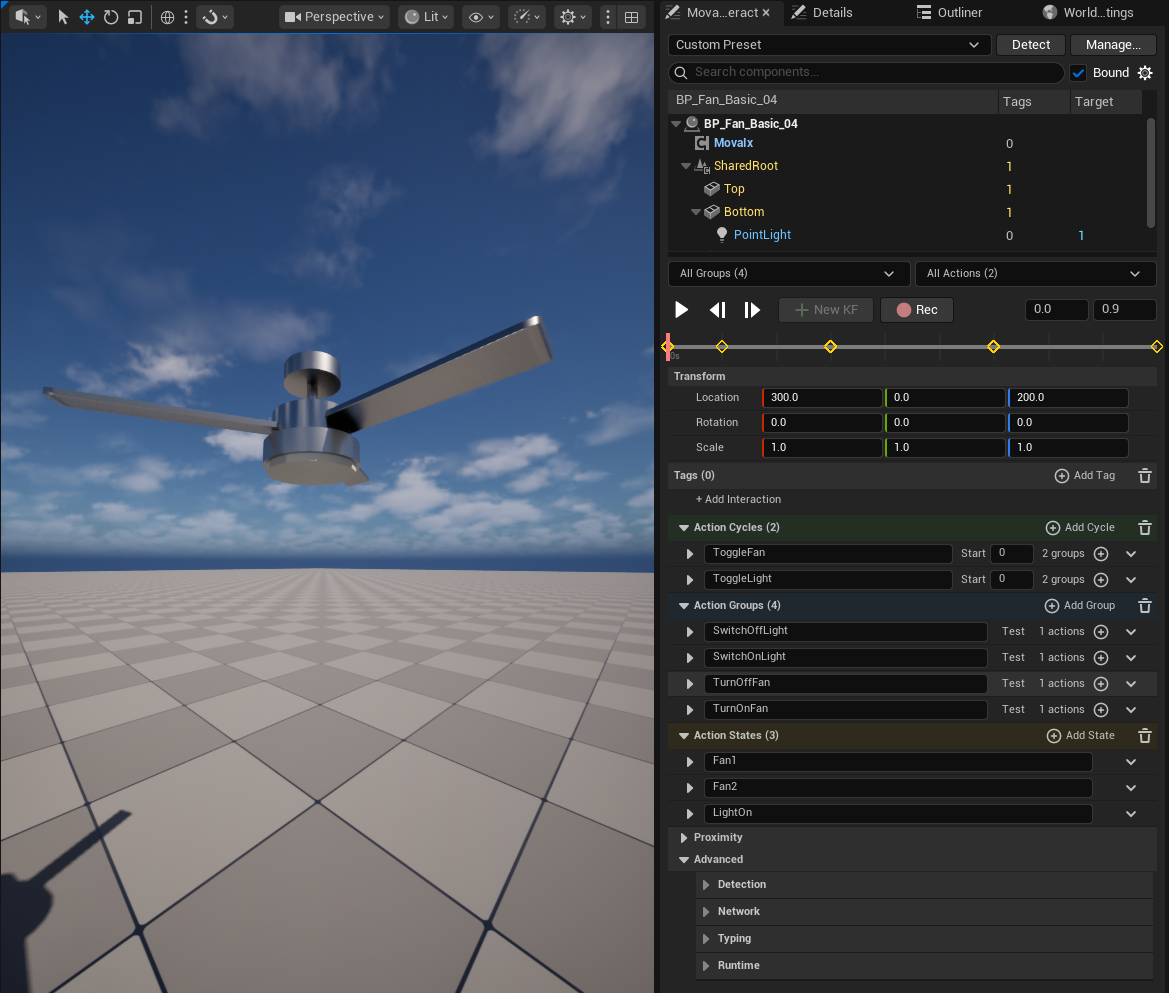
MovaInteract ships a custom editor that replaces the stock Details panel for any
actor carrying an IC (UMovaIxComponent). It is the reason working here is faster
than any node-graph interaction kit: everything is click-and-see, not
click-and-guess.
Save the real screenshot as: shot-control-panel-overview.png
Tip
Every field named below is offered by a searchable [...] picker: you rarely type
a token by hand. The panel validates whatever you do type and flags typos with an
amber chip.
Interaction tree
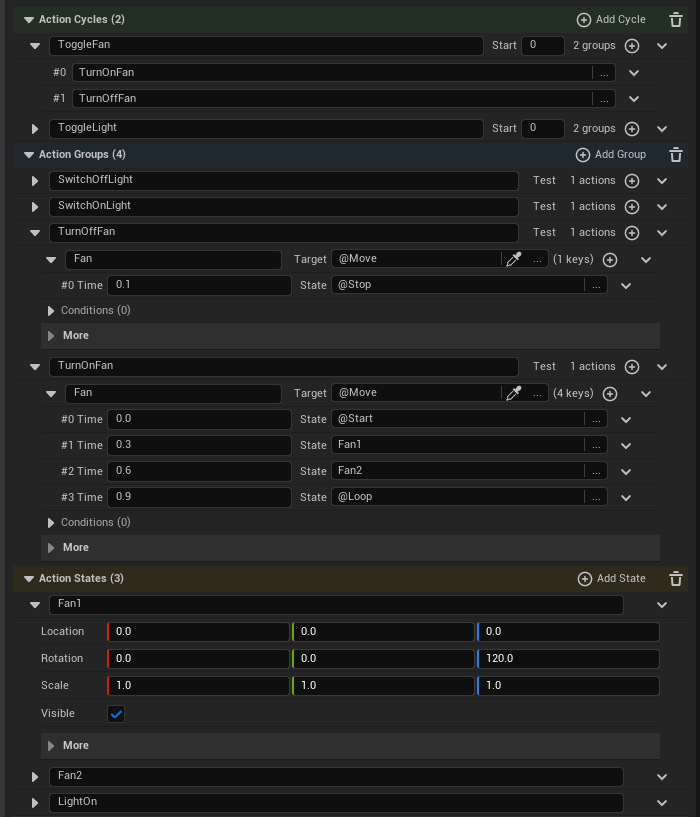
Cycles, Groups, Actions, KeyFrames and States lay out as a collapsible tree, each row editable in place. Renaming a Cycle, Group, State or Action does not require a rebuild (the panel re-keys every reference to it (Targets, KeyFrame states, gate conditions) as part of the same edit) and remembers which rows are expanded between selections.
Save the real screenshot as: shot-control-panel-tree.png
Scrubbable timeline
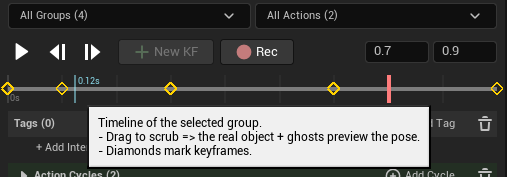
Each Group has a timeline strip with a draggable playhead: grab it and every Action's pose interpolates live in the viewport at that instant, no PIE required. ▶ Test plays the Group live (easing, ramps and loop markers included) the same as it runs in game, and step-to-keyframe controls jump the playhead to the next/previous written KeyFrame instead of an arbitrary time.
Save the real screenshot as: shot-control-panel-timeline.png
This replaces set it up → PIE → walk over → press → hunt for what's wrong with set it up → click Test → see.
Field pickers
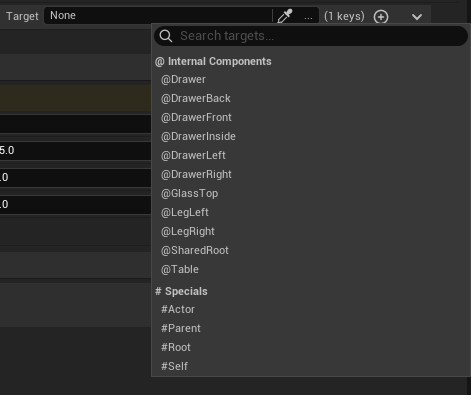
Every Target, State and cycle-Group field has a [...] button that opens a
searchable picker, sectioned to mirror the grammar's address selectors:
Save the real screenshot as: shot-control-panel-picker.png
Section |
Lists |
|---|---|
|
internal scene components on this actor, by name |
|
external actor tags found in the level, with a usage count next to each |
|
the specials: |
(states) |
written |
The picker also computes wildcard shortcuts from your actual component names:
DoorHandle and DoorHandle2 offer @Door* (2) as a one-click entry that matches
both, so you never type the glob by hand.
Validation chips
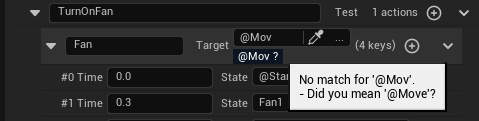
Under each Target, State or interaction Tag field, a strip of color-coded chips classifies every token: internal, external, special, state, or verb. A token that resolves to nothing turns amber with a "did you mean '@Door'?" suggestion, computed from the closest match among this actor's real components and tags: typos show up instantly, not as a quiet no-op the first time a player presses the object in PIE.
Save the real screenshot as: shot-control-panel-chips.png
Guided interaction builder
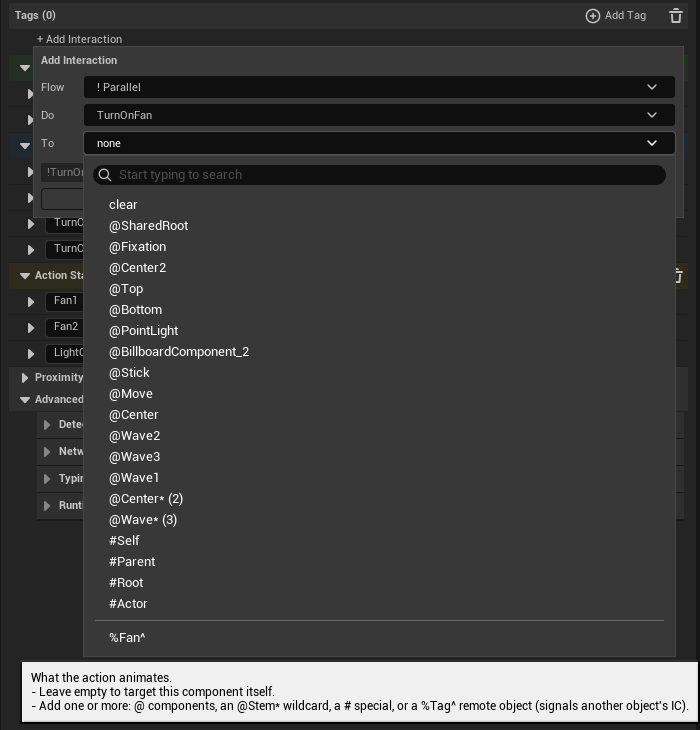
Every tag list (component Tags, actor Tags, and Proximity Enter /
Leave) has a "+ Add Interaction" button that composes a valid tag from
dropdowns, so you don't have to remember the grammar: pick a flow
(! Parallel, > Choice, + Extension), pick a verb (a Cycle or Group name),
add one or more targets (wildcards included), and watch the live preview
before committing.
Adding a gate without typing one
The "Only when" row builds a ? gate the same way, so an interaction can be
blocked by another object's state without hand-writing ?@Drawer3:!Open. The same
builder sits under "+ Add Gate" in the ... picker on any tag row.
It asks three things:
Field |
Means |
|---|---|
Reads |
what the gate looks at: |
Is |
which written state to test for |
When |
either way (default), |
plus a not box to negate the whole test. A state is only recorded once a move reaches its keyframe, so either way is the forgiving choice and the one a collision gate usually wants. See Tag Grammar Reference.
Gates stack: add several and every one has to hold. The live preview shows the real token, so what lands on the row is the same text you'd type by hand.
Save the real screenshot as: shot-control-panel-add-interaction.png
Multi-actor transforms and copy/paste
Select several actors and edit a shared transform property: the delta applies to all of them as one, preserving their relative arrangement, in a single undo.
Section headers and per-component transforms copy/paste in stock UE Details format: Shift+right-click copies, Shift+left-click pastes. Values move freely between this panel and the native Details panel, or between two actors' IC panels, no custom clipboard format to learn.
Empty-state templates
A brand-new IC with no data written yet shows "Start from a template" cards, one per available preset, that seed a complete, working bundle with one click, so the first thing a beginner sees is something that already works, not a blank tree. See Presets.
Save the real screenshot as: shot-control-panel-empty-state.png
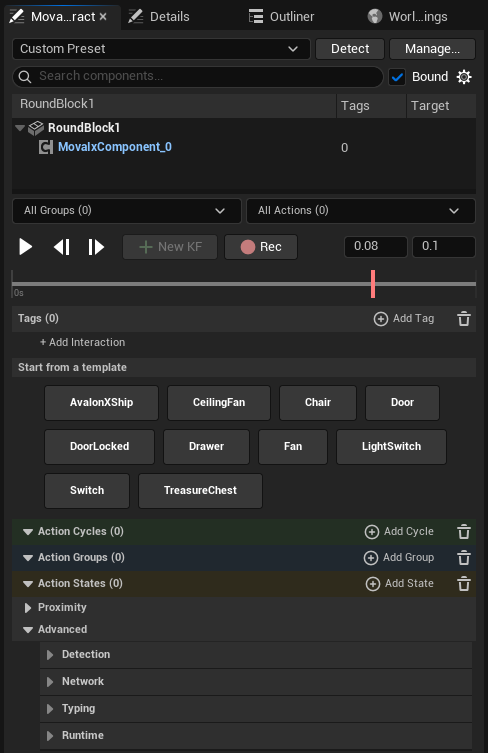
Responsive, non-destructive editing
The layout adapts to panel width, expansion state is remembered between selections, and rebuilds are deferred: editing a field never loses focus or flickers the panel out from under your cursor mid-keystroke.
Recording interactions
Don't hand-place keyframes: perform them. In the timeline transport, press ● Rec, move / rotate / scale any of the actor's components in the viewport, and press ■ Stop.
Save the real screenshot as: shot-recorder-workflow.png
While recording, MovaInteract samples every moved component each tick, simplifies each track (trims stationary head/tail, keeps only the poses that matter), generates a new Group with one Action per moved component, its KeyFrames, and a fresh State per captured pose, restores the objects to where they started, and focuses the new Group in the tree.
Open a drawer by hand, hit Stop, and you have a finished, editable Open interaction, no manual timeline work. It's a starting point, not a final answer: rename the generated State and Group, then tune easing or add gates the normal way.
Contextual help while you work
Almost every field, chip and row in this panel carries a rich tooltip: hover it and get a structured, formatted explanation, not a bare Slate one-liner. Text can be bold or color-tinted to match what it's telling you (ex: an amber run for a warning), and multi-field tooltips lay out as clean label: value rows instead of one run-on sentence.
Save the real screenshot as: shot-control-panel-rich-tooltip-gate.png
A Gates row shows its live PASS/FAIL right in the tooltip, so you can tell why an interaction won't run without leaving the panel to check the other component:
Save the real screenshot as: shot-control-panel-rich-tooltip-tag.png
An unresolved token doesn't only turn its validation chip amber: hovering it explains why and repeats the suggested fix, bolded, right where you're already looking:
Save the real screenshot as: shot-control-panel-rich-tooltip-unresolved.png
Tip
If a field's purpose isn't obvious from its name, hover it before searching the docs: the answer is often already there.
See also
The Model: the State/KeyFrame/Action/Group/Cycle shape the tree mirrors.
Tag Grammar Reference: the full grammar the pickers and chips build on.
Presets: saving and re-applying a whole interaction bundle.
Debug overlay & troubleshooting: when a tag built here still "does nothing" in PIE.