Quick Start
Note
Video walkthrough coming soon. A YouTube walkthrough of the recipes below goes here. Until then, follow the written steps: each one has its own screenshot.
Three recipes, each buildable in a few minutes, that together teach the whole system. Build them in an empty level and you have a Quick-Start map: one actor per recipe.
Tip
Every field named below (@Panel, Open, Door, ...) is offered by a searchable
[...] picker in the IC Control Panel. You rarely type anything by hand, and the
panel validates what you write and flags typos with an amber chip.
Recipe 1: A door you open (60 seconds)
You'll build: a StaticMesh that swings open on the first press and closes on the next.
The fastest way to build this is to record it, not type it in by hand:
Drop a StaticMeshActor with a door mesh. Add a child scene component (or use the mesh itself) named
Panel: the part that rotates. Select the actor → the IC Control Panel opens. Click + Add Interactive Component if it has no IC yet.
Save the real screenshot as: shot-quickstart-r1-step1-add-ic.png
Select
Panelin the viewport, press ● Rec, rotate it open with the mouse, press ■ Stop, then Create. That's the whole recipe: every field in the dialog is already filled in (ForwardOpen, ReverseClose, CycleToggle), and the Tag (!Toggle) is written ontoPanelautomatically, nothing left to name or wire up by hand. See The IC Control Panel.
Save the real screenshot as: shot-quickstart-r1-step2-record.png
Give your pawn a Mova Interact Interactor component and call
TargetInteraction()from an input action (or press ▶ Test on a group to preview without playing).
Save the real screenshot as: shot-quickstart-r1-step3-interactor.png
What just happened: the tag !Toggle on Panel says "run the Toggle cycle,
driving whatever Component this tag sits on." No explicit target is needed since
the tag lives directly on the Component that moved. Each press moves the cycle
one step (Open then Close then back) and the recorded KeyFrames tween the
pose. No Blueprint graph.
Note
Doing it by hand instead: a Cycle only steps over named Groups in order.
It does not reverse a Group on its own. Toggle needs two real Groups, Open
(ending at an Open State) and Close (ending back at @Zero), not one Group
listed twice. Add State Open with the open Rotation, build a Group Open
with one Action on @Panel (KeyFrame 0.0 = @Zero, KeyFrame 1.0 = Open),
then a Group Close reversing it (KeyFrame 0.0 = @Current, KeyFrame 1.0 =
@Zero), then a Cycle Toggle listing Open, Close. Recording does all of this
for you in one pass.
Recipe 2: A lamp that lights as you approach (no prompt)
You'll build: a lamp that turns on when the player walks near and off when they leave, no aiming, no button.
Drop a light-bearing actor. Add its IC. Name the light component
Bulb.
Save the real screenshot as: shot-quickstart-r2-step1-add-ic.png
Add State
On→ in its Visuals group setLightIntensityup (andLightColorif you like). Add StateOff→ intensity0.
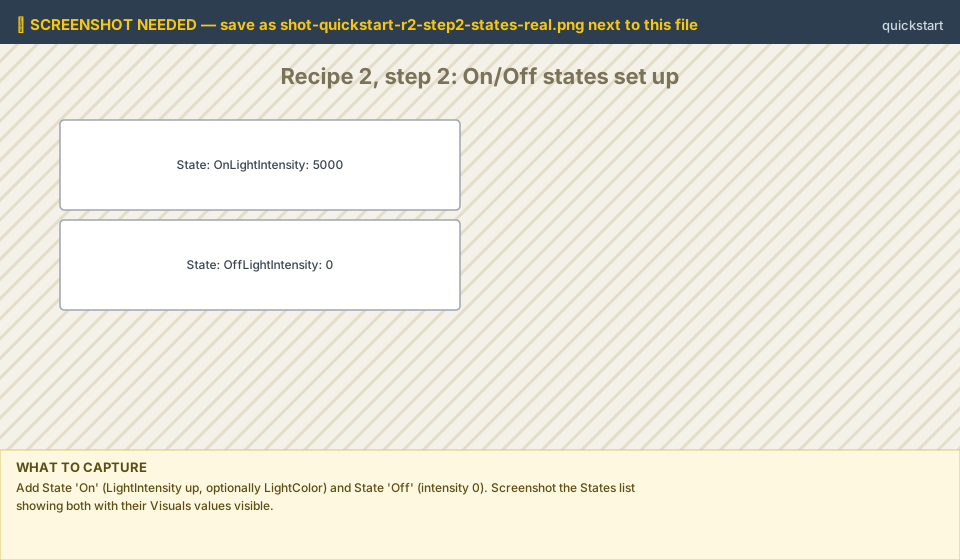
Save the real screenshot as: shot-quickstart-r2-step2-states.png
Add Group
TurnOn→ Action on@Bulb→ KeyFrame0.0=@Current, KeyFrame0.3=On. Add GroupTurnOffsimilarly ending inOff.
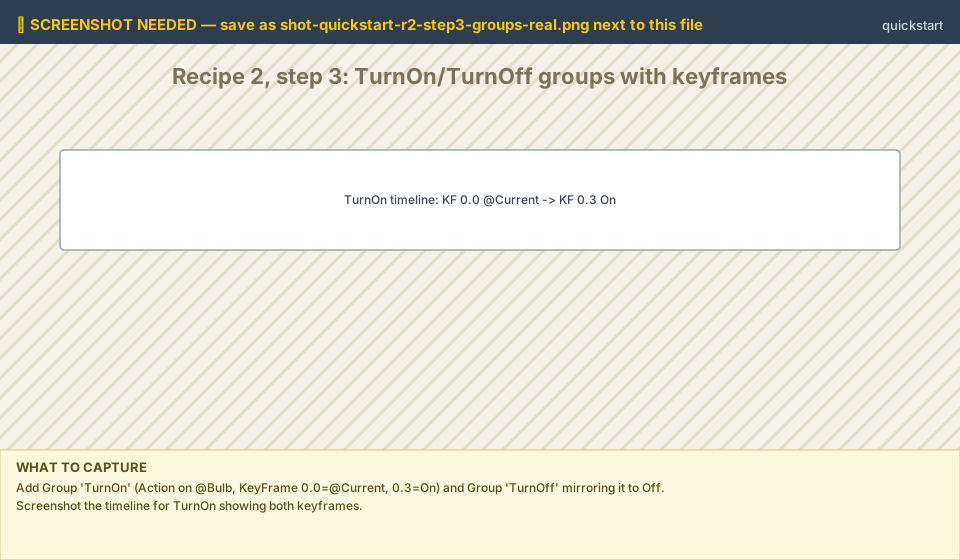
Save the real screenshot as: shot-quickstart-r2-step3-groups.png
On the IC, set
Proximity.Shape = Sphereand aSphereRadius(ex:300).
Save the real screenshot as: shot-quickstart-r2-step4-proximity-shape.png
In Proximity → Enter tags add
!TurnOn @Bulb; in Leave tags add!TurnOff @Bulb.
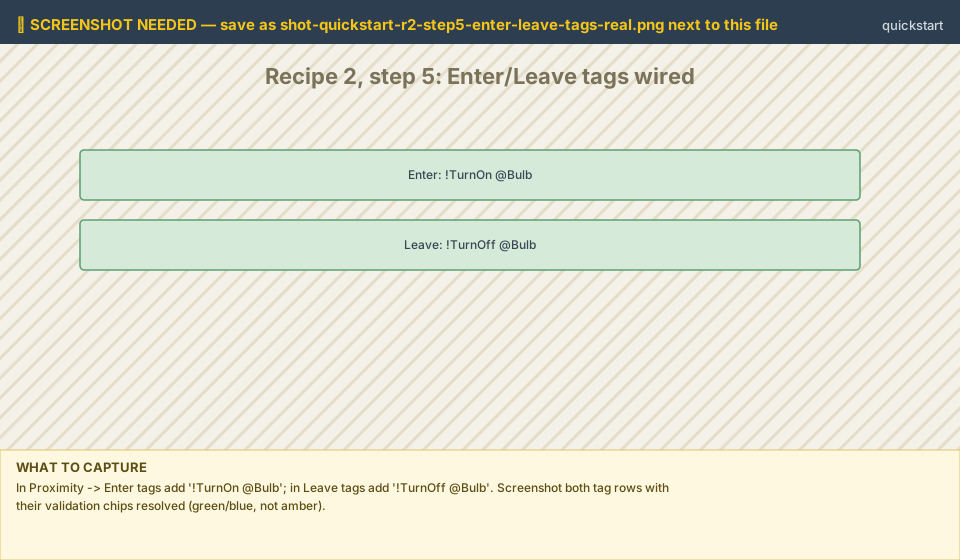
Save the real screenshot as: shot-quickstart-r2-step5-enter-leave-tags.png
What just happened: proximity tags use the same grammar as pressed tags: overlap fires Enter, exit fires Leave. A presence-driven interaction with zero UI. See Proximity: reacting without a prompt.
Recipe 3: A drawer locked behind a keycard (gates)
You'll build: a drawer that only opens when a separate Lock reads unlocked,
and gives a "locked" clunk otherwise.
Build a drawer the same way as Recipe 1: select the drawer front, press ● Rec, slide it out, ■ Stop, then Create with the defaults (Forward
Open, ReverseClose, CycleToggle). The!Toggletag lands on the drawer front automatically.
Save the real screenshot as: shot-quickstart-r3-step1-record-drawer.png
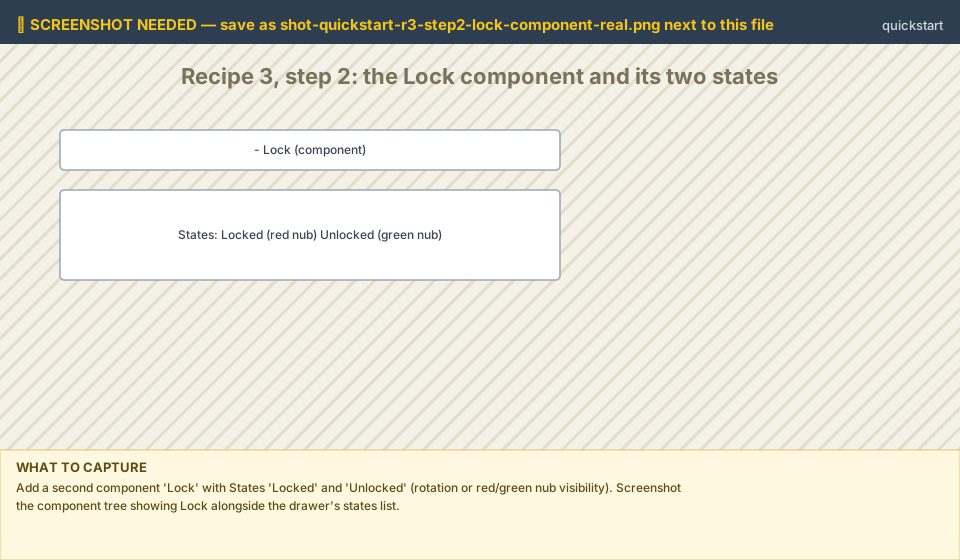
Add a second component
Lockwith two statesLockedandUnlocked(a small rotation, or only the visibility of a red/green nub).
Save the real screenshot as: shot-quickstart-r3-step2-lock-component.png
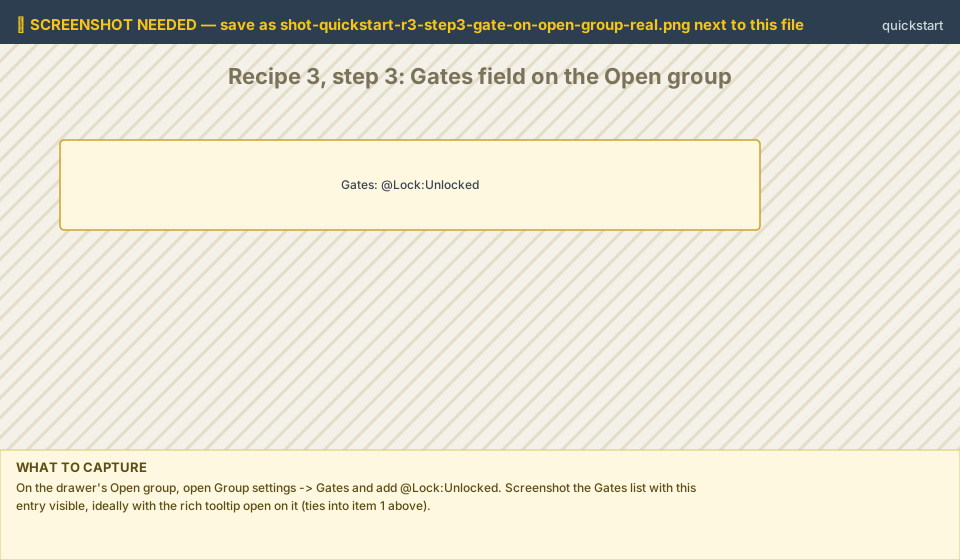
On the drawer's
Opengroup, open Group settings →Gatesand add@Lock:Unlocked: "only run while theLockcomponent is in itsUnlockedstate."
Save the real screenshot as: shot-quickstart-r3-step3-gate-on-open-group.png
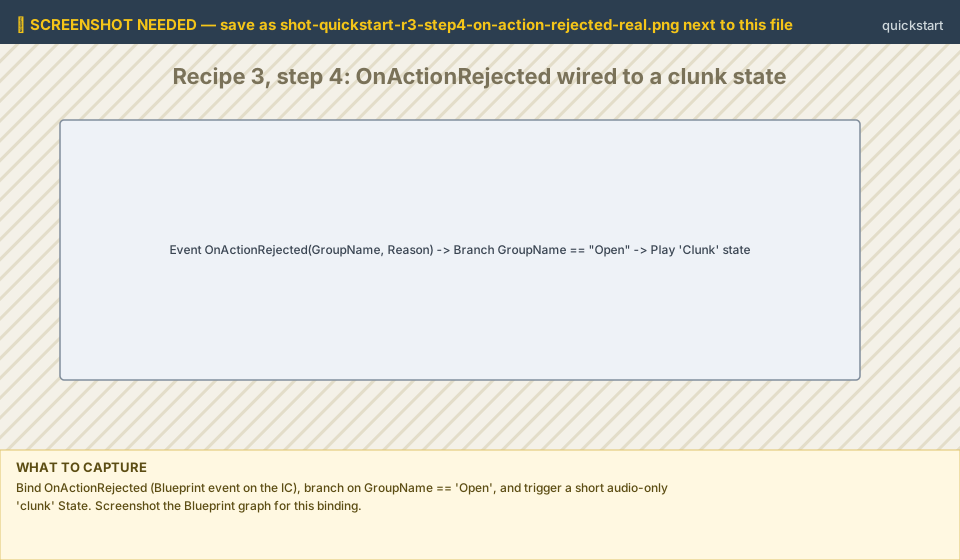
Set up the fail feedback: bind
OnActionRejected(a Blueprint event on the IC) and, whenGroupName == "Open", run a short "clunk" state (an audio-only State with a Trigger sound) directly, there is no automatic fail-action field, the rejection is reported to you and you decide what plays.
Save the real screenshot as: shot-quickstart-r3-step4-on-action-rejected.png
Make something toggle the
Lock: a keycard reader, a proximity tag, or a button elsewhere addressing it directly (@Lock, or%DrawerActorTag^@Lockif the drawer has its own actor=Tag): flipLocktoUnlocked.
Save the real screenshot as: shot-quickstart-r3-step5-unlock-trigger.png
What just happened: a Group's Gates list is checked before it is allowed to
start, using the same address grammar as everywhere else: a state on this IC
(:Open), an internal component (@Lock:Unlocked), or a remote object
(%Vault@Bolt:Locked). A pass lets the group start. A fail blocks it and
broadcasts OnActionRejected with the reason, which you bind to drive whatever
feedback you want. Keycard doors, multi-lock vaults and sequence puzzles all use
this one mechanism. See Gates: locks & conditions.
Tip
Shortcut: the same gate can be written inline on the tag itself
(!Toggle ?@Lock:Unlocked) when you want it on one interaction instead of
the whole group.
When it doesn't work
Open the console and type mova.ix.Debug tags gates, then aim at the object:
a target shown [UNRESOLVED] → the tag names a component the actor doesn't have (check the
@Name),a gate shown FAIL → a gate is holding it (check the group's
Gateslist, or the other component's state),no points at all → the IC has no actions or tags yet.
Full problem table: Debug overlay & troubleshooting.